Why Passwords Alone Aren’t Enough Anymore
Passwords alone are no longer enough to protect your business. Data breaches, phishing scams, and password-guessing tools have made stolen credentials one of the most common ways attackers get into business accounts. Multi-factor authentication, or MFA, is one of the simplest and most effective ways to close that gap.
Here’s what MFA is, how it works, and why it’s quickly becoming a baseline requirement rather than an optional extra.
What Is Multi-Factor Authentication?
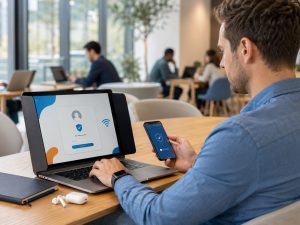
MFA requires a second form of verification beyond your password before granting access to an account. Even if someone steals or guesses your password, they still need that second factor to get in.
These factors generally fall into three categories:
- Something you know: a password or PIN
- Something you have: a phone, authenticator app, or security key
- Something you are: a fingerprint or facial recognition
MFA combines at least two of these, so a stolen password alone isn’t enough to compromise an account.
Why It Matters More Than Ever
Passwords get compromised constantly. Data breaches expose billions of credentials every year, and many people reuse the same password across multiple accounts. If one site is breached, attackers often try those same credentials elsewhere.
Phishing is more convincing than ever. Attackers use realistic emails and fake login pages to trick employees into handing over credentials directly.
The cost of a breach is high. Beyond financial loss, a compromised account can lead to data theft, ransomware, and damage to client trust.
Insurance and compliance often require it. Many cyber insurance policies and industry regulations now list MFA as a baseline requirement, not a suggestion.
Where MFA Should Be Enabled First
If you’re rolling MFA out across your business, start with the accounts that would cause the most damage if compromised:
- Business email
- Banking and payment accounts
- Cloud file storage
- Business software and administrative tools
- Administrator accounts
Common Objections (and Why They Don’t Hold Up)
“It slows my team down.” Most MFA prompts take a few seconds. Compared to the hours or days lost recovering from a compromised account, the tradeoff is minor.
“We’re too small to be a target.” Many attacks are automated and target businesses of every size. Smaller businesses are often seen as easier targets, not safer ones.
“Our password policy is strong enough.” Strong passwords help, but they don’t protect against phishing, reused credentials, or leaked databases the way MFA does.
Getting Started
Rolling out MFA across a business doesn’t have to be disruptive. With the right setup, it can be enabled account by account, with minimal impact on day-to-day work.
If you’re not sure where to start, or want to make sure MFA is set up correctly across your business accounts, Tech365 can help you put it in place.
(317) 762-8362 | Tech365.support