cameras installed
in-house install team
5-star Google reviews

UniFi Protect cameras come in shapes built for different jobs. Choose a type to see where we install it and what it does best.

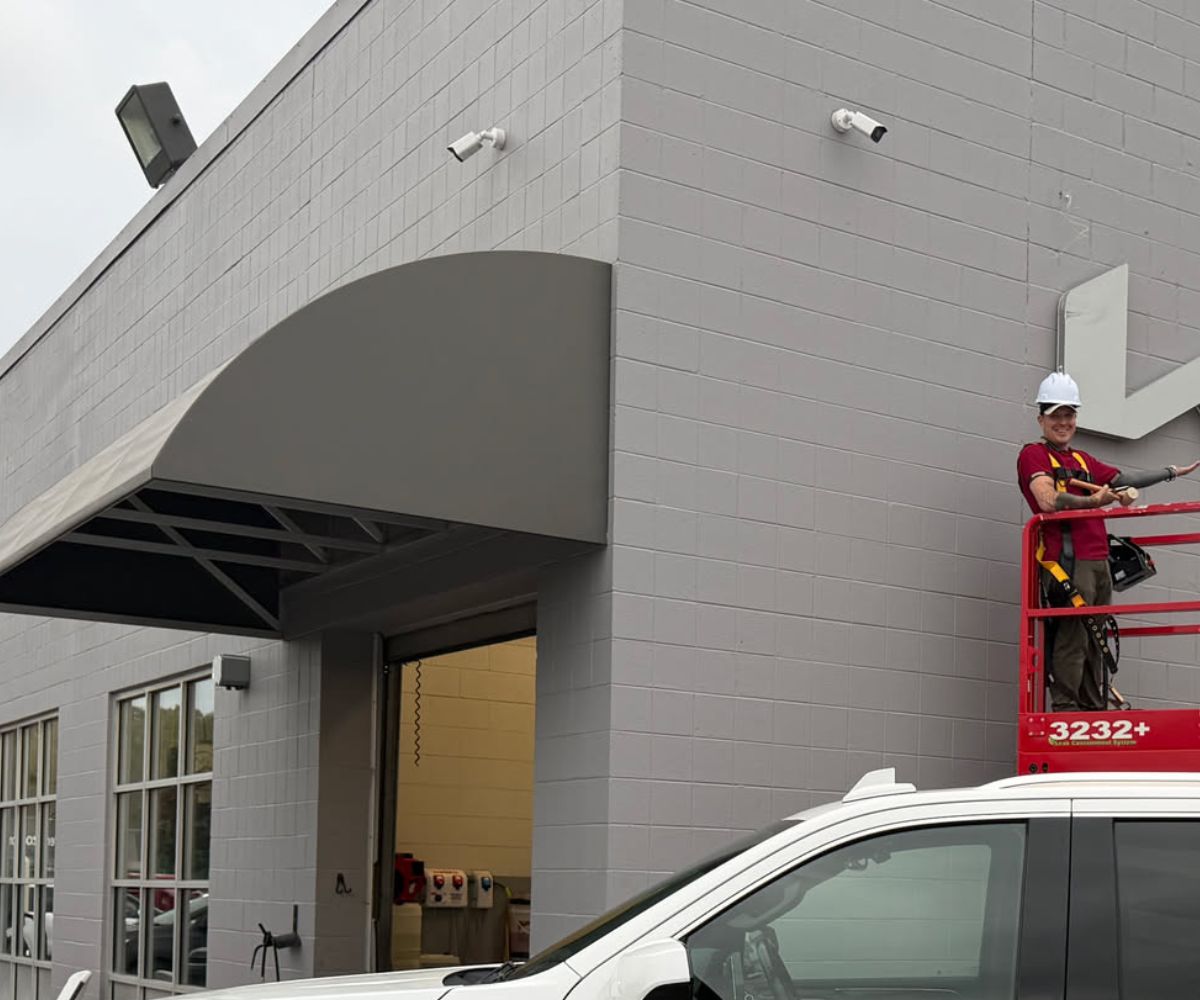
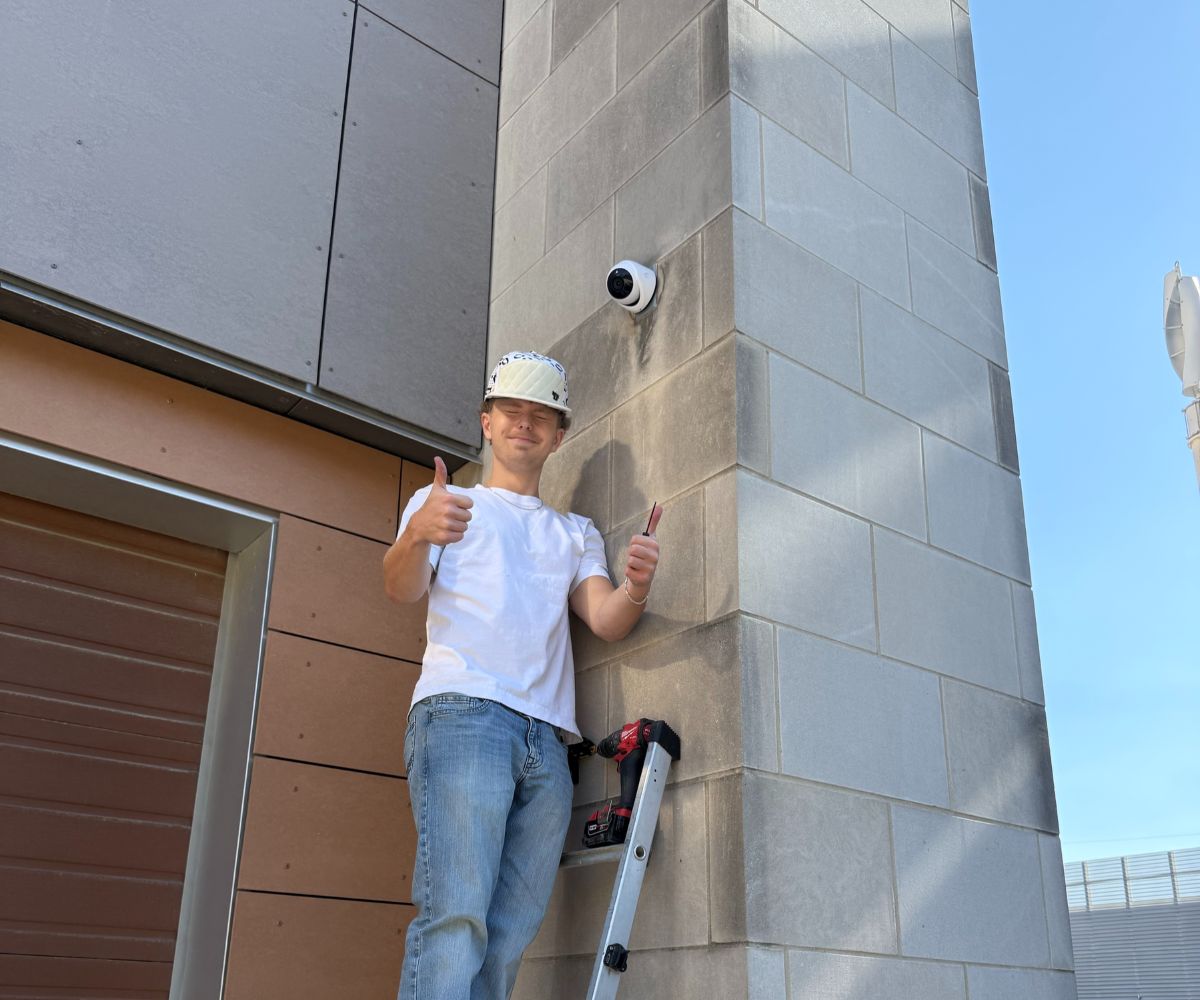
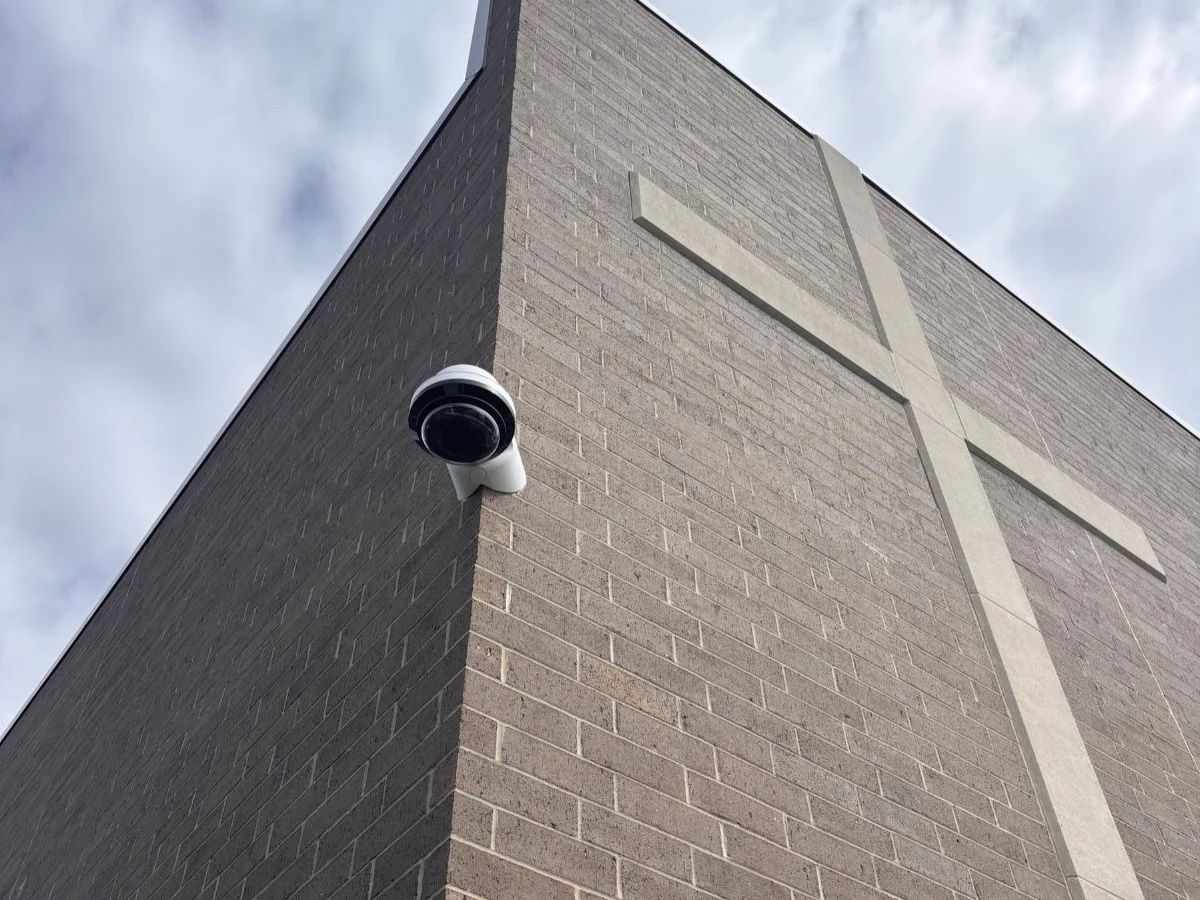
Weather-ready cameras for building exteriors, driveways, and fence lines. Bullets are a visible deterrent built for long, directional scenes. Turrets sit lower profile under eaves and are easy to aim and hard to tamper with.

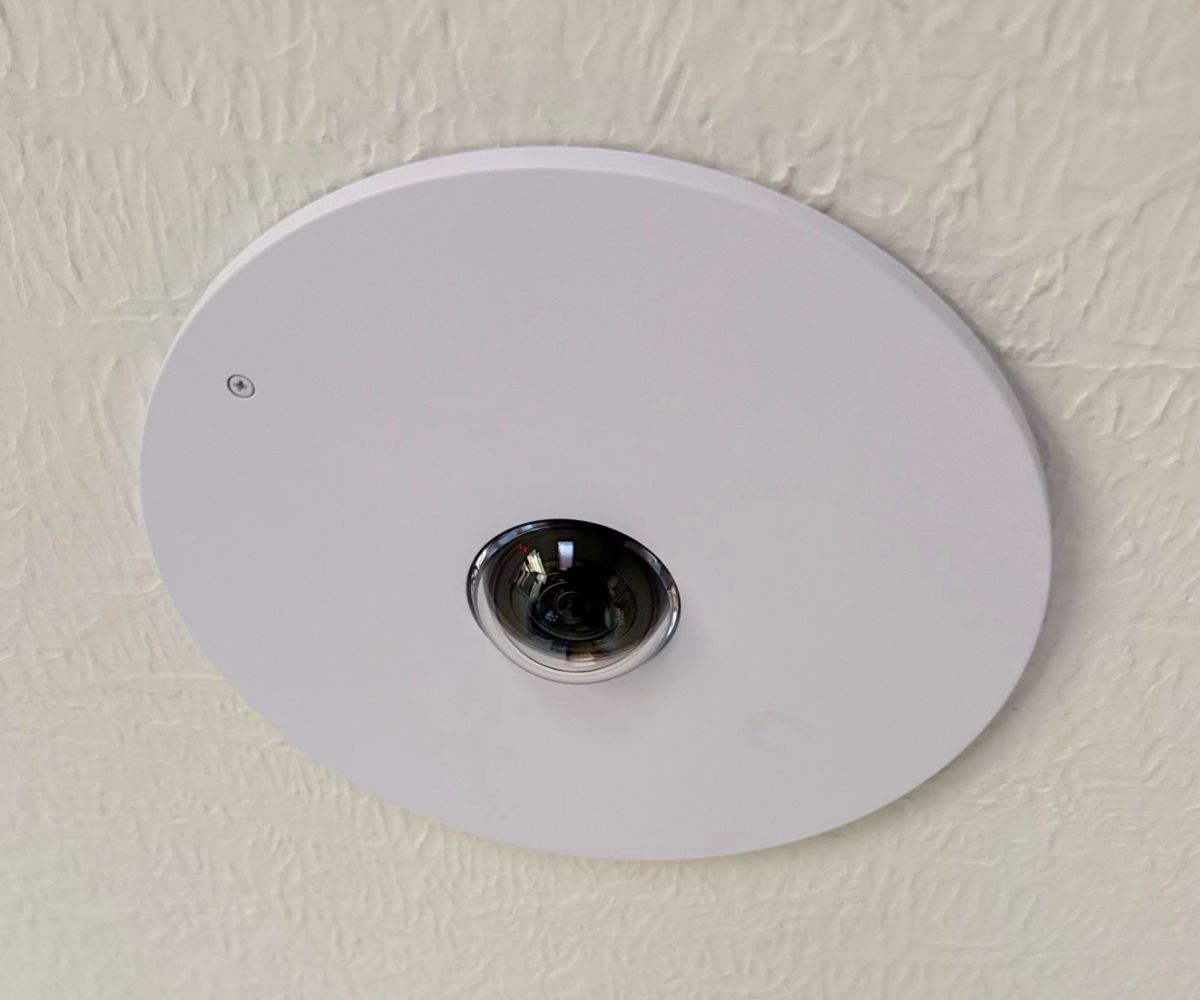
Ceiling-native and discreet, domes blend into lobbies, hallways, and entries. Where a camera is within reach, a vandal-resistant dome keeps recording even if someone tries to knock it out of position.

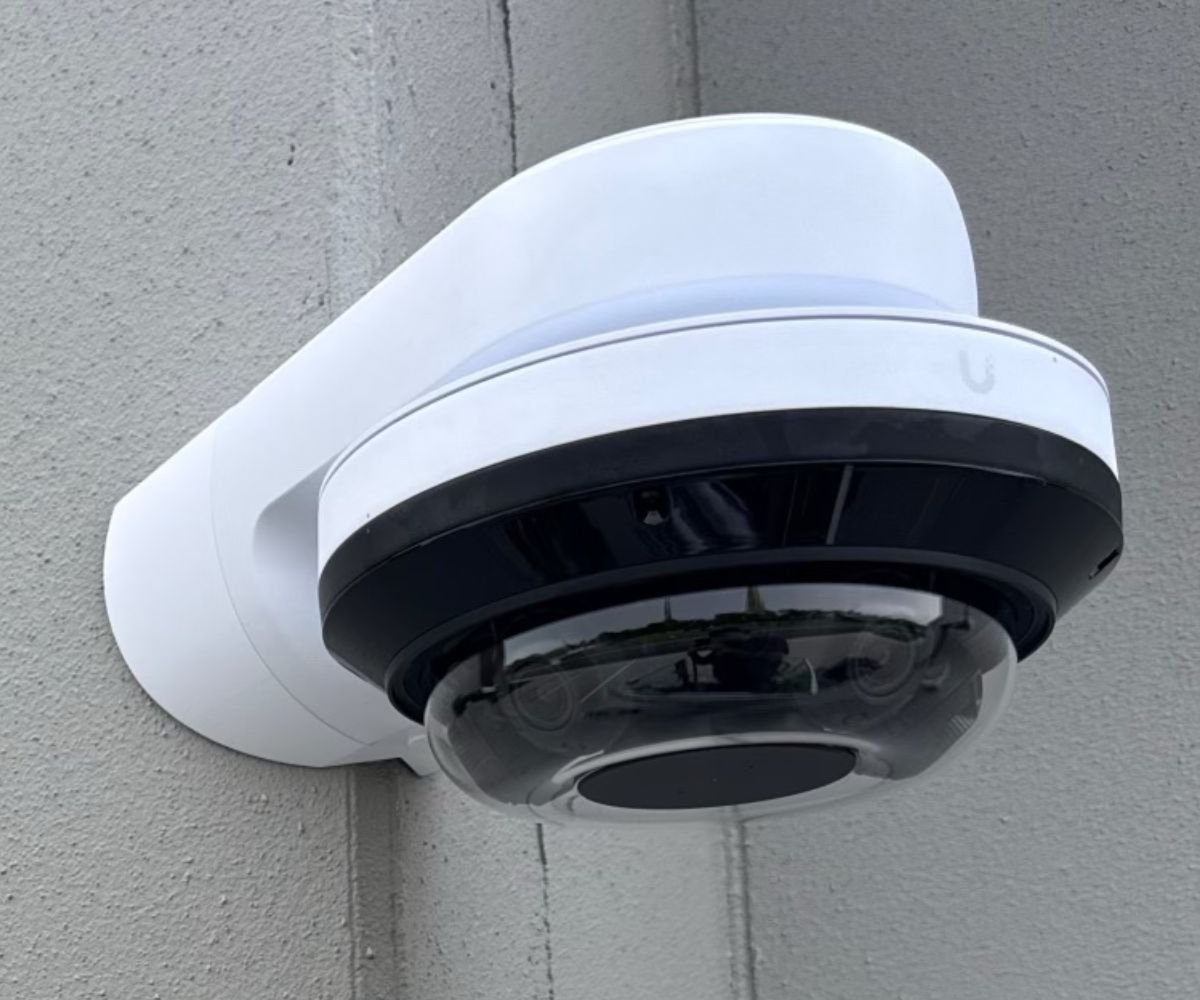
For parking lots, warehouses, and open rooms, one well-placed camera can do the work of several. PTZ cameras pan, tilt, and zoom to follow activity. Panoramic 360 cameras see an entire room from a single ceiling mount.

At gates, drive entrances, and front doors, the goal shifts from seeing activity to identifying it. AI cameras recognize faces and read license plates at the choke points where people and vehicles pass.
Model availability and features change over time. We confirm current models and specs during your design.
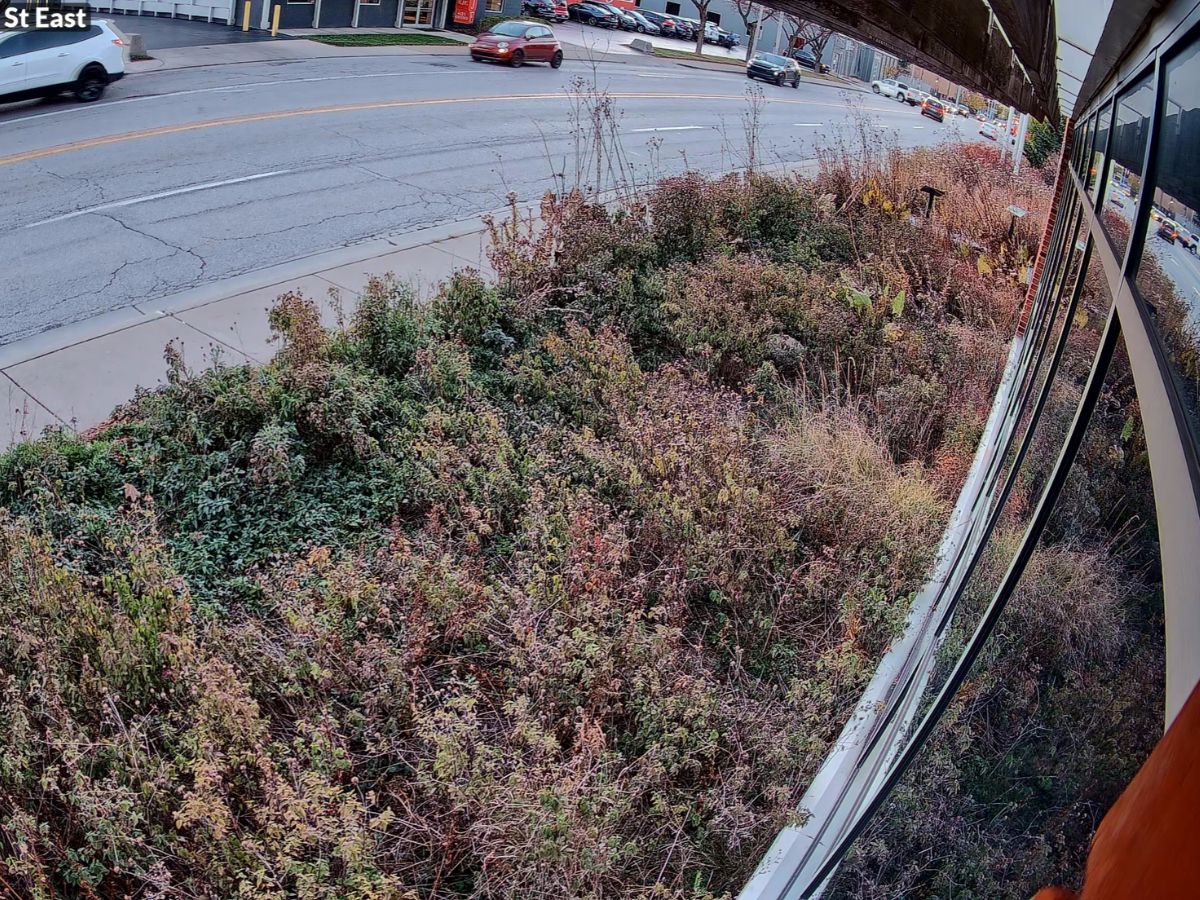
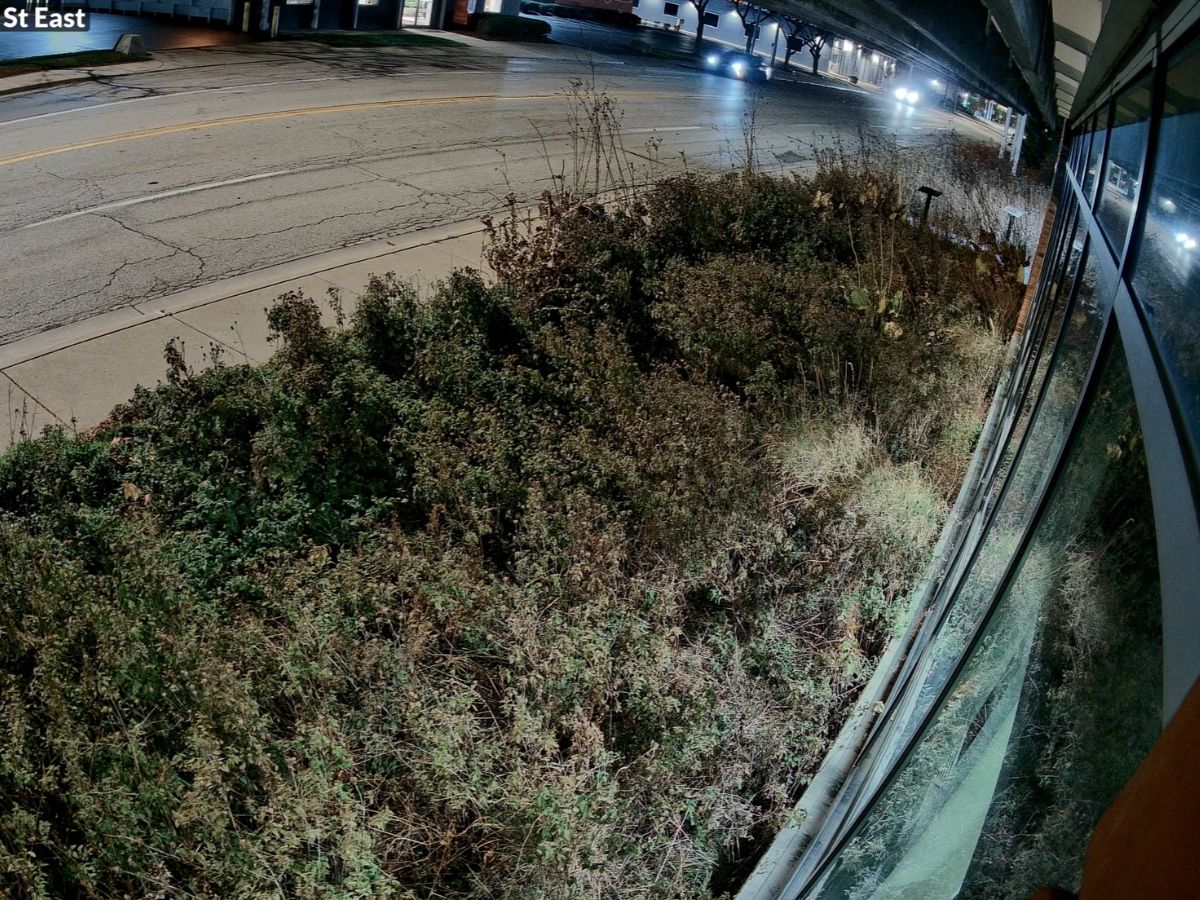
Drag the slider to compare the same camera view in daylight and after dark.


Sample stills from a Tech365 install, shared with permission. Faces and plates blurred for privacy.
Current G6 cameras record in 4K, so you can zoom into recorded footage and still make out faces and details.
Infrared night vision keeps recording in the dark, with longer range on Pro models.
We aim cameras to capture faces and plates where people and vehicles actually pass, not just to see movement.
Most buildings share the same trouble spots. Tap an area of the sample layout to see which camera we typically install there, and why.
Every site is different. During your walkthrough, we build a camera map specific to your building.
Exterior walls, side doors, and fence lines need weather-ready cameras with strong night vision.
Wide, open areas need a camera that can follow movement, or one with the optical zoom to capture detail at a distance.
Every vehicle passes the same choke point, which makes it the ideal place to read plates and log arrivals.
Faces are at eye level and the camera is within reach, so durability and facial recognition both matter.
A single ceiling camera can cover the whole room, including the front desk and seating.
Long, narrow corridors are best covered by a camera aimed down their length.
Large open floors with racking need wide coverage, and fewer, smarter cameras keep costs down.
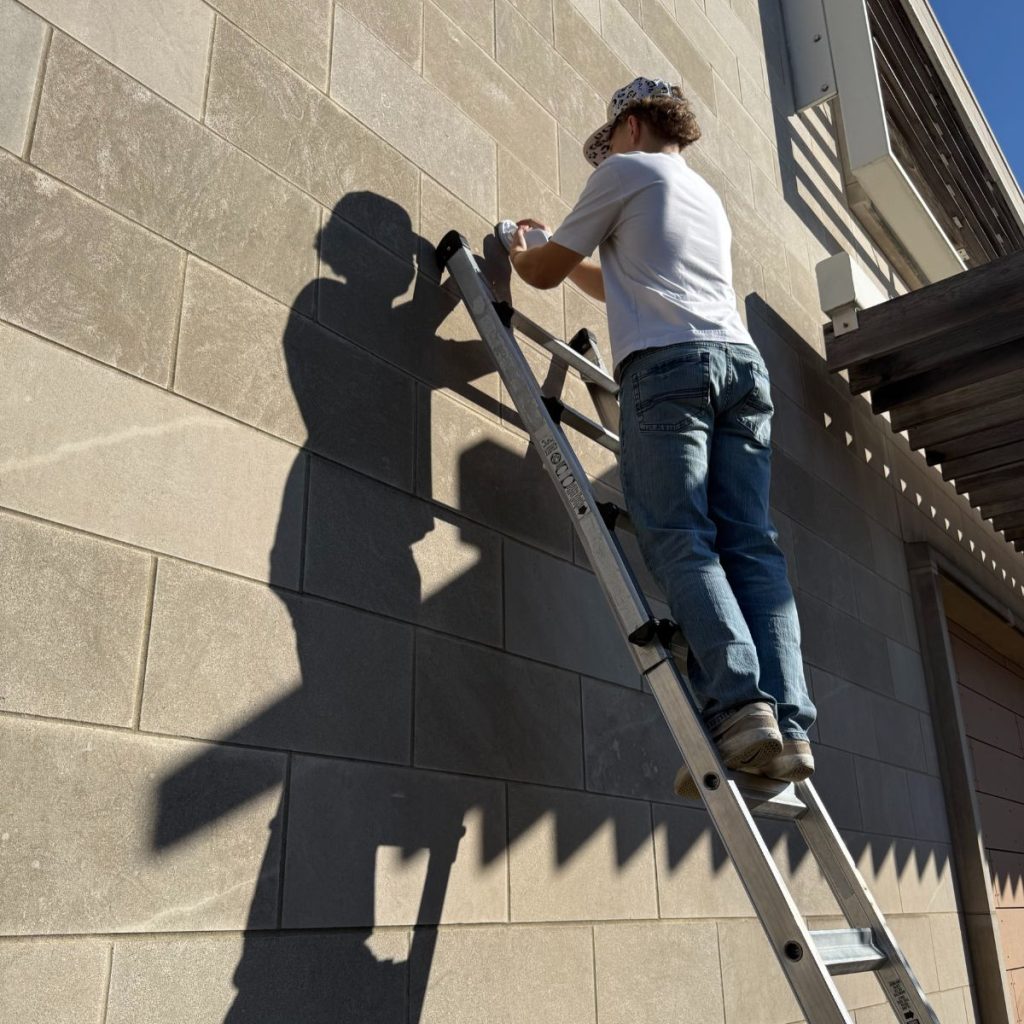
Many installers sell the job, then hand it to whichever crew is available. We don't. Every camera we install is handled by our own trained technicians, held to one standard, and backed by the same local team you call for support.

No surprises and no shortcuts. Every camera project, large or small, includes the same complete scope, handled entirely by our own team.
We walk the property, note lighting and entry points, and map every camera's position and field of view before install.
Clean, concealed cable runs by our own technicians, tested before cameras go up.
Mounted at planned heights and angles, sealed against Indiana weather.
Your UniFi console or recorder configured and sized for the number of days you want to keep.
Detection zones, alerts, and privacy masks set up so notifications mean something.
The UniFi Protect app on the phones of the people you choose, with the right access for each.
We show your team how to view live video, search recordings, and share clips.
A record of every camera's location and settings, so nothing is a mystery later.
Add Tech365 White Glove Managed IT for monitoring, updates, and one local team to call when you need a clip pulled or a camera checked.
UniFi Protect turns cameras into a system you actually use, with the AI running locally on your hardware.
Alerts for people, vehicles, and animals instead of every passing shadow or swaying tree.
Known-face alerts for staff and flags for unknown faces at key doors, on supported models.
Searchable plate history at drive entrances and gates, with watchlist alerts.
Find events by time, camera, or detection type in seconds. Add a UniFi AI Key for plain-language search.
Notifications by zone and schedule, so you hear about the loading dock after hours, not the lobby at noon.
Export and share footage with insurance, police, or your team in a few taps.
Pair with UniFi Access so every door entry is logged alongside the matching video.
Live and recorded video in the UniFi Protect app, with access you control person by person.
Every camera system is quoted for your building after a complimentary walkthrough. Here’s what our clients say about the result.
Every building is different, so we quote after a complimentary walkthrough. Your price comes down to a few things:
Straight answers about cameras, recording, and who's doing the work.
No. Every Tech365 camera install is handled by our own employees, from the site walk to cabling, mounting, and setup. The same team supports your system afterward.
No. UniFi Protect has no per-camera license or recording fees, and viewing in the app is included. Optional cloud archiving is available at extra cost if you want an off-site copy.
It depends on the number of cameras, resolution, recording mode, and storage size. We size your storage during design to match how many days you want to keep.
Often, the cabling can be reused after testing. UniFi Protect works best with UniFi cameras, and some third-party cameras can connect with limited features, so we'll tell you what makes sense to keep.
AI and newer UniFi models support them, with exceptions such as 360 cameras for facial recognition. Many older G4 and G5 cameras can add these features with a UniFi AI Key.
Yes. Privacy masks let you black out areas such as neighboring windows or sensitive spaces, and we set them up during configuration.
Yes. Recording happens on hardware at your site, so it continues during an internet outage. Remote viewing returns once the connection is restored.
Yes. New cameras join the same UniFi Protect system and app, so you can start with key areas and expand over time.
We learn what you want to see, protect, and be alerted to.
We check entry points, lighting, sightlines, and existing cabling.
Every camera's placement and view mapped out, with a clear quote.
Our own team cables and mounts every camera, scheduled around your operations.
Detection zones, alerts, and app access configured, then a walkthrough with your team.
Monitoring, updates, and one local team to call for clips or camera checks.


When a shared printer stops working, there can be several possible causes, and it often takes a few checks to identify the issue.
Here is how we typically approach printer problems in an office setting:
✓ Checking how the printer is connected and who is affected
✓ Reviewing printer status, errors, and queued jobs
✓ Confirming computers are pointing to the correct printer
✓ Updating or reinstalling printer software if needed
✓ Testing printing once changes are made to confirm results
Opening a suspicious link does not always mean something is wrong, but it is worth a security check.
Here is how we typically help recover files and protect data going forward:
✓ Identifying what data is missing and where it was last stored
✓ Checking available backups and recovery points
✓ Attempting safe file recovery without causing further damage
✓ Confirming what can and cannot be restored
✓ Putting backup and disaster recovery protections in place for the future
Opening a suspicious link does not always mean something is wrong, but it is worth a security check.
Here is how we typically make sure systems remain secure:
✓ Checking the affected device for any unusual activity
✓ Confirming email, account access, and passwords are still protected
✓ Reviewing recent activity to ensure nothing unexpected occurred
✓ Removing anything unsafe if it is found
✓ Helping reduce future risk by implementing simulated phishing emails
Server outages happen, and there are clear steps we take to restore access and minimize disruption.
Here is how we typically help get teams back up and running:
✓ Identifying what caused the outage and how widespread it is
✓ Bringing critical systems and access back online safely
✓ Checking data integrity to make sure nothing was lost or corrupted
✓ Reviewing server health to prevent repeat issues
✓ Putting safeguards in place to reduce future downtime
When Wi-Fi goes in and out, it is usually tied to a few common setup or signal issues.
Here are some of the things we look at to help get Wi-Fi working more consistently:
✓ Making sure Wi-Fi coverage reaches all the areas you need it
✓ Checking for signal interference from nearby devices or networks
✓ Reviewing router placement and basic configuration
✓ Confirming equipment and software are current
✓ Helping reduce ongoing connection problems over time
Slow computers are usually caused by a few common issues, and they are typically fixable.
Here is how we typically help with slow computer issues:
✓ Removing unnecessary background programs and system clutter
✓ Freeing up storage that can slow performance
✓ Fixing update or software conflicts
✓ Checking hardware for early signs of wear
✓ Keeping systems maintained to help prevent future slowdowns