Unifi WiFi 7 | Certified Ubiquiti Installer
WiFi That Reaches Every Corner. Designed Before We Drill.
Tech365 maps your building on a predictive heatmap, installs UniFi WiFi 7 access points with our own team, then proves the coverage with a post-install survey. Fast, reliable WiFi you own, with no license fees.
450+
access points installed
100%
in-house install team
130+
5-star Google reviews
WiFi 7 · 6 GHzStrong signal, every room
Seamless roamingCalls stay connected
Guest networkIsolated from your data
Real Tech365 Project
See What Good WiFi Design Looks Like
This heatmap is from a real Tech365 project. Tap the markers to see how we placed each access point.
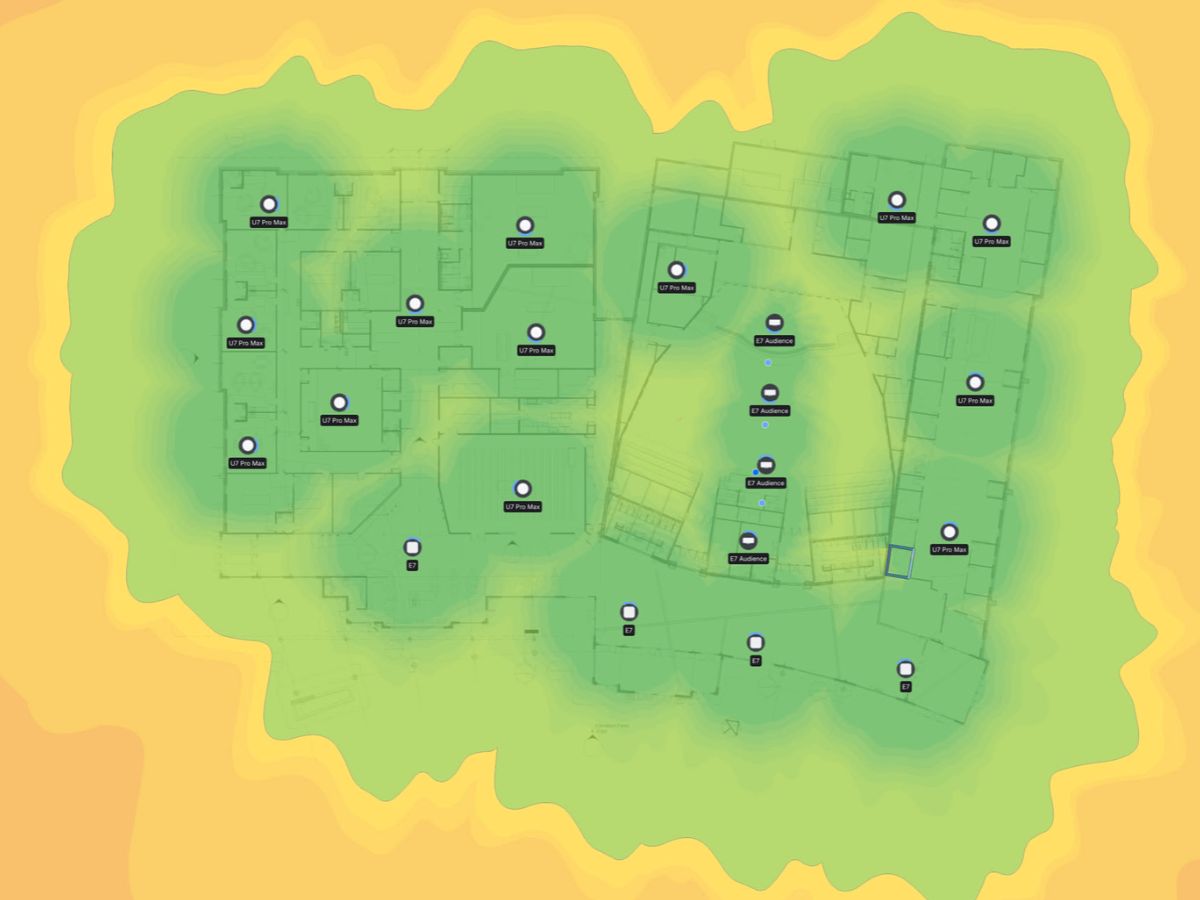
WeakStrong
21 access points3 modelsWiFi 7
Heatmap from a Tech365 project, shared with permission. Client details removed.
Find Your Access Point
Which UniFi Access Point Fits Your Space?
Three quick questions, and we'll show you the UniFi WiFi 7 model we'd typically start with.
Quick access point finder
Every building is different, but the right starting point usually comes down to where, how, and how busy.
Question 1
Where do you need WiFi?
Question 2
How would it mount?
Question 2
How busy is the outdoor area?
Question 3
How many devices in the space?
Question 3
Need wired ports in the room?
Our starting recommendation
U7 Pro
Ceiling-mounted WiFi 7 for offices, retail, and restaurants.
- WiFi 7 with 6 GHz support
- Covers about 1,500 sq ft
- Handles 300+ connected devices
- 2.5 GbE uplink, powered over PoE+
Our starting recommendation
U7 Pro Max
Ceiling-mounted WiFi 7 built for busy rooms full of devices.
- 8 spatial streams with 6 GHz support
- Covers about 1,750 sq ft
- Handles 500+ connected devices
- Dedicated radio that scans for interference in real time
Our starting recommendation
U7 Pro Wall
Wall-mounted WiFi 7 for rooms where ceiling mounting isn't practical.
- WiFi 7 with 6 GHz support
- Covers about 1,500 sq ft
- Handles 300+ connected devices
- Clean wall mount, powered over PoE+
Our starting recommendation
U7 In-Wall
Mounts over a wall box and adds wired ports for in-room devices.
- WiFi 7 coverage for a single room
- Built-in Ethernet ports for TVs, phones, and desks
- Ideal for hotel rooms, offices, and classrooms
- Low-profile, fits standard wall boxes
Our starting recommendation
U7 Outdoor
Weatherproof WiFi 7 for patios, yards, and lots.
- Covers about 5,000 sq ft of open space
- Handles 200+ connected devices
- Directional antenna, adjustable for wider coverage
- Wall or pole mounting
Our starting recommendation
U7 Pro Outdoor
Higher-capacity outdoor WiFi 7 for busy outdoor spaces.
- More radio capacity than the U7 Outdoor
- Built for outdoor areas with many users
- Weatherproof, articulating wall or pole mount
- 2.5 GbE uplink, powered over PoE+
Coverage and device counts are Ubiquiti's published figures. Your site survey determines the final models and placement.
Network Segmentation
One WiFi System. Separate Lanes for Everything.
Guests, staff, smart devices, and cameras each get their own network, so one can't wander into another. Tap a network to see what it can reach.
Networks
Allowed or blocked
InternetAllowedBlocked
Company files & systemsAllowedBlocked
Printers & shared devicesAllowedBlocked
Camera recorderAllowedBlocked
In-House TechniciansNo subcontracted crews, ever
Certified Ubiquiti InstallerUniFi WiFi 7 specialists
BBB AccreditedIntegrity First is our first value
Local to Central IndianaHamilton County and surrounding areas
Network Visibility
See Exactly What's Happening on Your Network
Your UniFi dashboard shows who’s connected, how the WiFi is performing, and anything that needs attention, all in one place.
Dashboard screenshotUniFi Network dashboard showing connected devices, WiFi health, and alerts (blur client names, device names, and site details)
Screenshot from a Tech365-managed network. Names and identifying details removed.
- Connected devices
How many phones, laptops, and devices are on the network right now.
- WiFi health
An at-a-glance quality score, so problems show up before people complain.
- Access point status
Every access point, whether it's online, and which ones are busiest.
- Drops & alerts
Disconnects, offline devices, and anything unusual, flagged automatically.
- Traffic over time
How much bandwidth you're using and when, to plan for growth.
Who's watching? You can see all of this in the UniFi app. With Tech365 White Glove management, our team keeps an eye on it too, so issues get handled before they slow anyone down.
Ballpark Estimator
How Many Access Points Will You Need?
Slide to your building size and pick how busy it gets. You'll get a rough range, and your site survey nails down the exact number.
1,000 sq ft60,000 sq ft
How busy is it?
Estimated access points
10 to 13
A starting range for planning. Walls, materials, and layout can move it in either direction.
Get an Exact NumberRough estimate for planning only. Based on typical coverage per access point for each density. A predictive heatmap and site survey determine the final design.
Our Own Team
Installed by Tech365. Supported by Tech365.
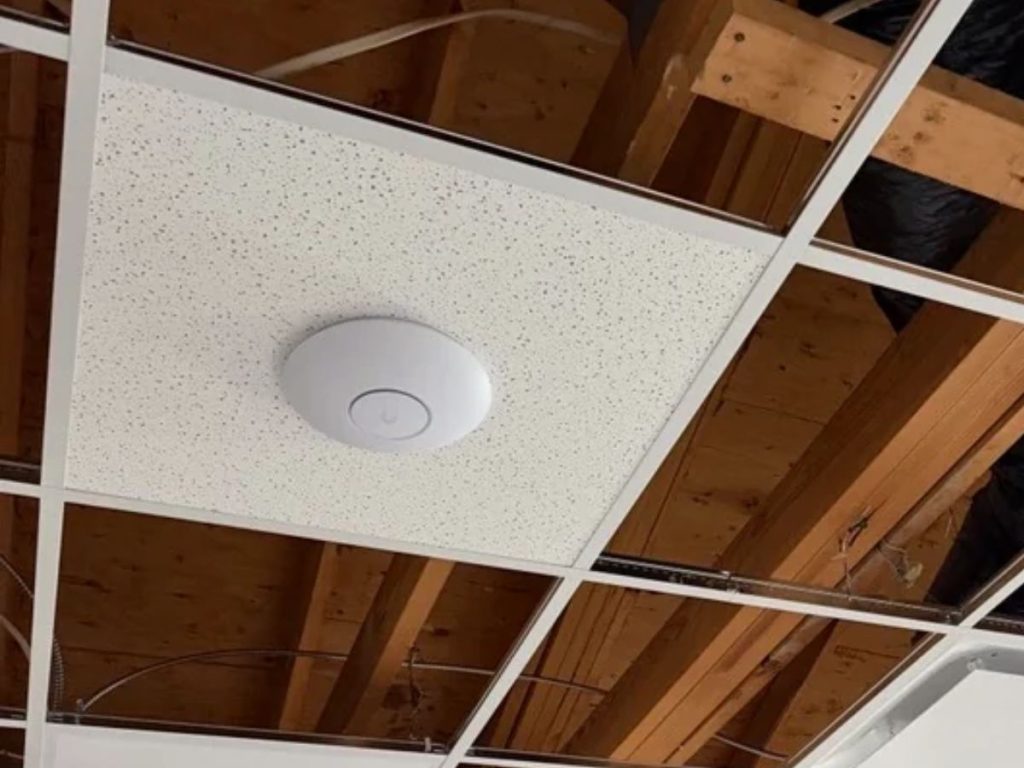
The technicians who survey, cable, and mount your access points work for Tech365, not a subcontractor. When you call for support, you reach the same local team that built your network.
2 surveysBefore and after every install
1 local teamFrom the first survey to every support call
1 appEvery access point, managed from your phone
$0Access point license fees
Every WiFi Project Includes
From Survey to Signed Off, Done by Our Team
- Step 1
Site survey
We measure your current WiFi, note walls, materials, and problem areas, and talk through how your team works.
- Step 2
Predictive heatmap design
We model coverage on your floor plan and place each access point before anything is installed.
- Step 3
Cabling & mounting
Our technicians run clean, tested cable and mount every access point at its planned spot.
- Step 4
Network setup
Staff, guest, device, and camera networks configured, with fast roaming and guest portals if you want them.
- Step 5
Validation survey
We walk the building again to confirm real coverage matches the design.
- Step 6
Documentation & handoff
A map of every access point and its settings, plus a walkthrough with your team.
TRUSTED BY LOCAL BUSINESSES
Real Results, Reliable WiFi
Don’t just take our word for it. Here’s what local businesses say about working with the Tech365 team.
EXCELLENT Based on 132 reviews
 Posted on Google

 Ashley MohrNovember 7, 2026We can’t say enough great things about this crew! Wednesday turned into a bit of crisis mode when our office server unexpectedly went down. Thankfully, he had a replacement server on hand, got everything set up, and even drove it to us to get us back up and running! They are always responsive, knowledgeable, and willing to go above and beyond. One of the things we appreciate most is how they make IT feel easy, even when we’re asking questions that probably seem silly to them! They never make us feel that way and are always patient and helpful. So thankful to have a team we can count on, especially when things don’t go as planned. Highly recommend!Posted on Google
 Clay ClementNovember 7, 2026Since we built this home 10 years ago, we’ve struggled with decent WiFi in several locations. Brandon came out today and within about an hour, installed some additional equipment and we are now well connected everyone in our home. Thanks Brandon for solving this for us quickly and efficiently.Posted on Google
 Luke RogersNovember 5, 2026Our dental office has been using Brandon and Tech365 for the last several years and cannot recommend their services enough. Some of the nicest people you will ever meet and have never had a single issue that the team couldn’t get resolved quickly. 10/10 couldn’t recommend more!Posted on Google
 Natalie LorenzanoNovember 5, 2026We use Tech365 for any and all IT related issues. They are speedy and knowledgeable and have helped our business grow! They are so friendly and really care about our issues.Posted on Google
 Patti HarmlessNovember 4, 2026Brandon is a lifesaver, especially for someone who is technically challenged. He answers my questions in a way I can understand and his patience is exceptional. Brandon and Tech365 are extremely generous with their support and the PCYDC CASA Program appreciates their service. Patti Harmless PCYDC CASA DirectorPosted on Google
 Joe MetzSeptember 1, 2026Brandon was a huge help! I was referred to 2 other tech people first (from other companies) who were not able to solve my issue and Brandon had us up and running in just a few hours. I could not recommend Brandon and Tech365 enough!!Posted on Google
 Missy TennantAugust 25, 2026Brandon and his team are the best. They are always available and keep us up and running. We couldn't do what we do without him.Posted on Google
 Zach SmithAugust 24, 2026We have been absolutely thrilled with the team at Tech365. They are very quick to respond when they are and go above and beyond to service their clients. We are happy to have them on our side!Posted on Google
 Monish PatelAugust 24, 2026Best Ever. Brandon knows it all and does the best work!! Would use him for everything! Smartest guy in the room and has the best heart as well!!Posted on Google
 Joshua CarterAugust 23, 2026If you are looking for a company that prioritizes your needs, finds ways to save you money, and can do anything (literally anything) tech related…. Look no further. I have been working with Tech365 for the past couple of years and my business operations have drastically improved because of them. Brandon solves problems and lets you be a part of the process and learn along the way. Super helpful for another business owner who desires to understand all parts of their business. I highly recommend Tech365!
QUESTIONS WE HEAR OFTEN
UniFi WiFi FAQ
Straight answers about coverage, WiFi 7, and who's doing the work.
Do you use subcontractors for WiFi installs?
No. Every Tech365 WiFi project is surveyed, cabled, installed, and configured by our own employees, and the same team supports it afterward.
Are there license fees for UniFi access points?
No. UniFi access points have no per-device license fees, and the system keeps working without a subscription. Tech365 White Glove management is an optional, separate service.
What is WiFi 7, and do we need it?
WiFi 7 is the newest standard, with faster speeds and access to the less crowded 6 GHz band for newer devices. Older devices still connect normally, so WiFi 7 access points work for everyone.
Why does our WiFi drop when we walk between rooms?
Usually the access points aren't placed or set up to work together, so devices hang onto a distant one until the signal fails. We design coverage so devices switch smoothly to the nearest access point as you move.
Why do you survey before installing?
Walls, glass, metal, and layout all affect WiFi. A survey and predictive heatmap let us place access points where they'll work, instead of guessing and fixing dead zones later.
Can guests use our WiFi without accessing our network?
Yes. Guest WiFi runs on its own isolated network, with an optional branded login page, so visitors get internet and nothing else.
Can you reuse our existing cabling?
Often, yes. We test existing cabling during the survey and tell you what can be reused and what should be replaced.
Will our older devices still work?
Yes. UniFi WiFi 7 access points support older WiFi standards, so laptops, phones, and printers from previous generations still connect.
Can you cover outdoor areas too?
Yes. Weatherproof UniFi outdoor access points cover patios, yards, and parking areas, and join the same system as your indoor WiFi.
Ready for WiFi That Just Works?
Book a complimentary WiFi assessment. We'll measure what you have today and show you what a Tech365 design would look like.
UniFi WiFi Installation Across Central Indiana