Unifi Access | Certified Ubiquiti Installer
Door Access Without the Keys. Control Every Door From Your Phone.
Badges, phones, PINs, and face unlock instead of brass keys. Tech365 installs UniFi Access with our own team, so you can add or remove access in seconds, set schedules for every door, and see every entry with video.
50+
doors secured
100%
in-house install team
T3 Spaces
event scheduling app
Access grantedJamie M. · Front door · 8:02 AM
T3 Spaces event activeEvent hall open 1 PM to 5 PM
Why Businesses Switch
What Happens When Access Goes Missing?
Pick a scenario. One is the way most buildings still work. The other is how UniFi Access handles it.
- Someone loses a keyOr a former employee never returns theirs.
- Call a locksmithSchedule a visit and wait for an opening.
- Rekey the locksEvery lock that key opened needs changing.
- New keys for everyoneHand out and track a fresh set of keys.
- Days laterAnd you still can't tell who used the old key.
- Someone loses a badgeOr a former employee leaves.
- Open the UniFi appFrom anywhere, on your phone or computer.
- Revoke that one badgeIt stops working immediately.
- Everyone else is unaffectedNo new keys, no locksmith, no downtime.
- Done in secondsAnd the log shows every door that badge ever opened.
The old way: a lost key means cost, delays, and no record of who got in.
With UniFi Access: a lost badge is a two-tap fix, and you know exactly where it was used.
Permissions & Schedules
Who Can Go Where & When
Every person gets exactly the access they need, only at the times they need it. Pick a role to see which doors open for them.
Front door
Office suite
Supply room
Server room
Back door
T3 Spaces by Tech365
Doors That Follow Your Calendar Not Just Your Week
Standard door schedules are built for the same routine every week. But businesses, schools, nonprofits, and churches run on events. T3 Spaces, our in-house software, lets you open the right areas at the right times for each one. Pick an event to see it in action.
T3 Spaces · Upcoming events
Sunday services
UnlockedLocked
6a8a10a12p2p4p6p8p10p
1
Pick the event
A service, rental, meeting, or one-time occasion.
2
Choose the areas
Open only the doors that event needs, and keep the rest secure.
3
Set the times
Doors unlock and relock on their own. No one has to stay behind to lock up.
Why it matters: no more propping doors open, handing out keys for one night, or leaving the whole building unlocked for a single event. T3 Spaces was developed by Tech365's own development team for UniFi Access.
See It in a Walkthrough
Every Entry On Record
See Who Came In, When, & How
Every door event is logged and paired with video from your UniFi cameras, so you never have to wonder who opened the door.
Access log · Main buildingLIVE
Sample activity for illustration. Names are fictional.
Video with every entry
Each event links to the matching camera clip when paired with UniFi Protect cameras.
Denied attempts flagged
See when someone tries a door they don't have access to, or tries after hours.
Search in seconds
Filter by person, door, or time to answer "who was in the building?" without guesswork.
Reader Lineup
A Reader for Every Door
From the front entrance to the server room, there's a UniFi reader built for the job. Swipe or use the arrows to browse.
Main entrances
G3 Reader Pro
Our go-to for front doors. A touchscreen reader with a built-in camera and two-way intercom.
Face unlockApple & Google WalletBadge or fobPINIntercom
Premium entrances
G6 Pro Entry
A premium entry reader with 12MP video and AI, for entrances where you want the best view of who's at the door.
Face unlockPhoneBadge or fobIntercom
Interior doors with a keypad
G3 Reader Flex
A badge reader with a built-in keypad, for doors where PIN codes make sense.
Apple & Google WalletBadge or fobPIN
High-security rooms
G3 Reader Fingerprint
Adds fingerprint unlock for spaces like server rooms, records, and medication storage.
FingerprintPhoneBadge or fob
Everyday interior doors
G3 Reader
A compact reader for offices and suites, with hand-wave request-to-exit.
Apple & Google WalletBadge or fob
Visitor entrances and gates
G3 Intercom
An indoor/outdoor intercom so visitors can call, and you can let them in from your phone.
IntercomPhoneBadge or fobPIN
Model availability and features change over time. We confirm current models during your design.
Our Own Team
The People Wiring Your Doors Work for Tech365
No subcontractors. Our own technicians install every reader, lock, and hub, and the same local team supports it afterward.
Installed by Tech365

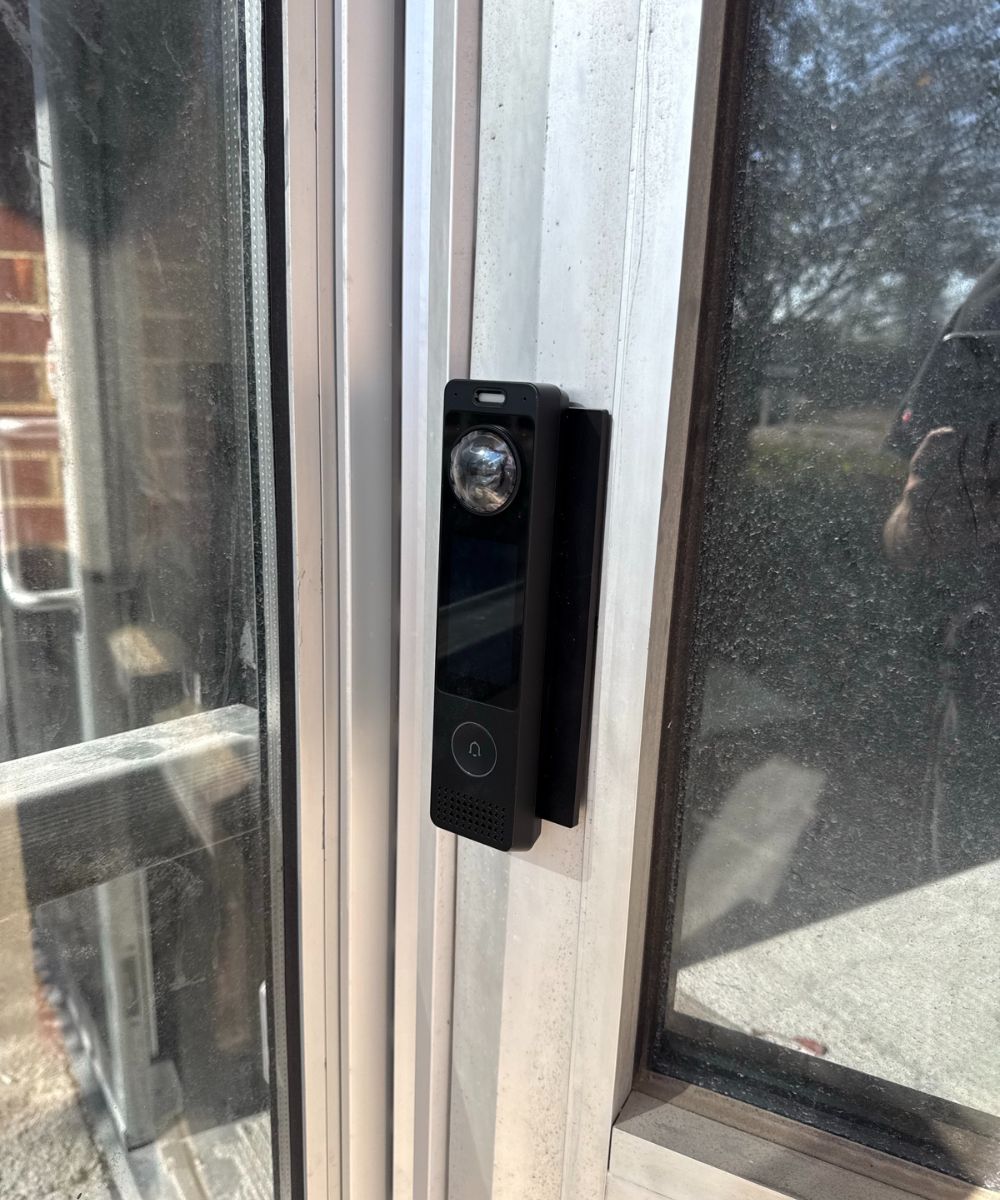
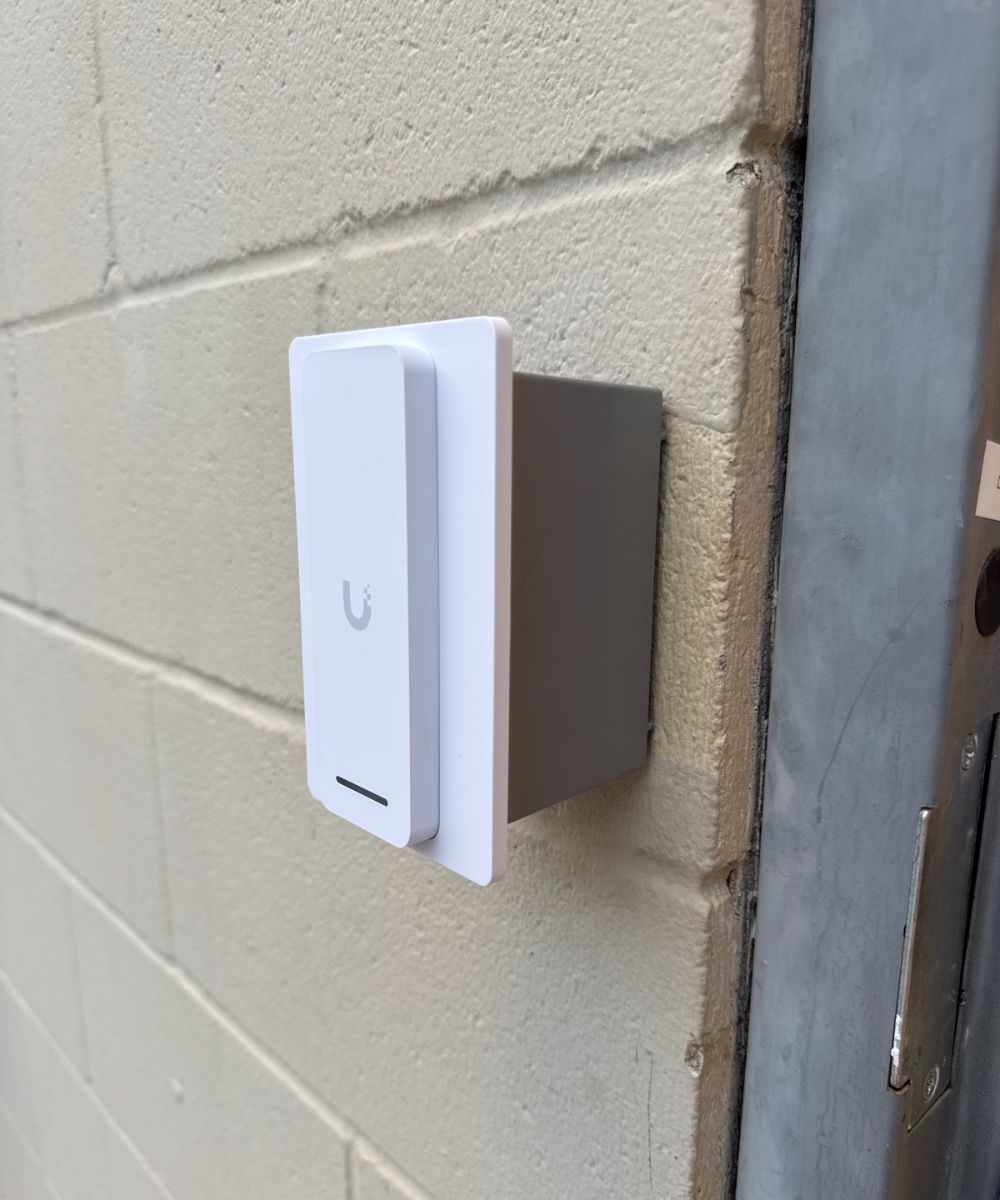
Clean, concealed wiring
Cable runs inside walls and door frames wherever possible, for a finished look.
Code-compliant on every door
Free exit, fire code, and the right lock type for each door, planned before install.
Tested before we leave
Every reader, lock, and exit device tested with your team on site.
Labeled and documented
Every door, wire, and setting recorded, so future service is fast.
Tech365 helped us completely redesign our IT infrastructure, access control, and security camera systems. They have been incredibly knowledgeable, responsive, and proactive throughout the entire process. Brandon and his team helped us control costs while also bringing innovative ideas that made us more effective, efficient, and safe.
Mike M.
Every Access Project Includes
Planned, Installed, & Supported by Our Team
Phase 1
Before install
- Walkthrough of every door you want to secure
- Check door hardware, frames, and power
- Plan readers, locks, and wiring
- Map out roles and schedules with you
Phase 2
Installation
- Readers, hubs, and locks installed by our team
- Work scheduled around your hours
- Doors brought online in planned stages
- Final walkthrough with you before handoff
Phase 3
After install
- Badges, phones, and PINs set up for your people
- Schedules and permissions configured
- Admin training in the UniFi app
- Ongoing support from the same local team
TRUSTED BY LOCAL BUSINESSES
The Team Behind Every Door
Our clients count on the same Tech365 team for their doors, network, and everyday IT. Here’s what they have to say.
EXCELLENT Based on 132 reviews
 Posted on Google

 Ashley MohrNovember 7, 2026We can’t say enough great things about this crew! Wednesday turned into a bit of crisis mode when our office server unexpectedly went down. Thankfully, he had a replacement server on hand, got everything set up, and even drove it to us to get us back up and running! They are always responsive, knowledgeable, and willing to go above and beyond. One of the things we appreciate most is how they make IT feel easy, even when we’re asking questions that probably seem silly to them! They never make us feel that way and are always patient and helpful. So thankful to have a team we can count on, especially when things don’t go as planned. Highly recommend!Posted on Google
 Clay ClementNovember 7, 2026Since we built this home 10 years ago, we’ve struggled with decent WiFi in several locations. Brandon came out today and within about an hour, installed some additional equipment and we are now well connected everyone in our home. Thanks Brandon for solving this for us quickly and efficiently.Posted on Google
 Luke RogersNovember 5, 2026Our dental office has been using Brandon and Tech365 for the last several years and cannot recommend their services enough. Some of the nicest people you will ever meet and have never had a single issue that the team couldn’t get resolved quickly. 10/10 couldn’t recommend more!Posted on Google
 Natalie LorenzanoNovember 5, 2026We use Tech365 for any and all IT related issues. They are speedy and knowledgeable and have helped our business grow! They are so friendly and really care about our issues.Posted on Google
 Patti HarmlessNovember 4, 2026Brandon is a lifesaver, especially for someone who is technically challenged. He answers my questions in a way I can understand and his patience is exceptional. Brandon and Tech365 are extremely generous with their support and the PCYDC CASA Program appreciates their service. Patti Harmless PCYDC CASA DirectorPosted on Google
 Joe MetzSeptember 1, 2026Brandon was a huge help! I was referred to 2 other tech people first (from other companies) who were not able to solve my issue and Brandon had us up and running in just a few hours. I could not recommend Brandon and Tech365 enough!!Posted on Google
 Missy TennantAugust 25, 2026Brandon and his team are the best. They are always available and keep us up and running. We couldn't do what we do without him.Posted on Google
 Zach SmithAugust 24, 2026We have been absolutely thrilled with the team at Tech365. They are very quick to respond when they are and go above and beyond to service their clients. We are happy to have them on our side!Posted on Google
 Monish PatelAugust 24, 2026Best Ever. Brandon knows it all and does the best work!! Would use him for everything! Smartest guy in the room and has the best heart as well!!Posted on Google
 Joshua CarterAugust 23, 2026If you are looking for a company that prioritizes your needs, finds ways to save you money, and can do anything (literally anything) tech related…. Look no further. I have been working with Tech365 for the past couple of years and my business operations have drastically improved because of them. Brandon solves problems and lets you be a part of the process and learn along the way. Super helpful for another business owner who desires to understand all parts of their business. I highly recommend Tech365!
QUESTIONS WE HEAR OFTEN
UniFi Access FAQ
Straight answers about doors, badges, and who's doing the work.
No. Every Tech365 access control install is handled by our own employees, from the walkthrough to wiring and setup. The same team supports your system afterward.
No. UniFi Access has no per-door license fees. Some optional features, like Apple and Google Wallet passes beyond those included with certain readers, may carry their own cost, and we'll spell that out up front.
Yes. Tech365 built T3 Spaces, our own event scheduling software for UniFi Access, so you can open specific areas for specific events, like after-hours events, tournaments, classes, vendor visits, or holiday closures, and have them relock automatically.
Yes. Many UniFi readers support unlocking with a phone, including Apple Wallet and Google Wallet passes on G3 readers, plus the UniFi mobile app.
Doors can be configured to fail safe or fail secure based on code requirements and your preference, and we'll plan battery backup where it makes sense. The system works on-site, so an internet outage doesn't stop badges from working.
Yes. We design every door to meet egress and fire code requirements, so people can always exit freely.
Often, yes. During the walkthrough we check your doors, frames, and hardware and recommend what can stay and what needs an electric lock or strike.
Yes. With an intercom or G3 Reader Pro, visitors can call from the door, and you can see them and unlock it from your phone.
Yes. Access and Protect work together, so every door event can be paired with the matching camera footage.
Ready to Retire the Keys?
Book a complimentary walkthrough. Our team will look at every door, plan the right readers and locks, and map out who gets access and when.
UniFi Access Control Installation Across Central Indiana